
05 / 09Seal guide
Lock your Claude Code sessions
A locked session takes no message and runs no tool until your phone says yes with Face ID.
AI agents now work on your computer for you. Anyone who gets into your computer, or into your account, can talk to them too. The session lock puts your phone in the way: a Claude Code session under the lock holds every message and every tool call until your iPhone signs a pass. A pass lasts 30 minutes, and nothing on the computer can make one, because the key is in your phone.
What you need
- Seal on your iPhone, with this iPhone’s key made (see Start here).
- A Mac with Claude Code 2.1.295 or later, and Python 3.
- Handoff on, on both, so the phone and the Mac share a clipboard: the same Apple Account, Wi-Fi and Bluetooth on, the phone near the Mac. On the iPhone: Settings, General, AirPlay & Continuity, Handoff. On the Mac: System Settings, General, AirDrop & Handoff. To check it, copy a word on the phone and press ⌘V on the Mac: the word should appear. iOS may ask you to allow the paste.
- The Mac side, Seal for Mac, a Claude Code plugin. In Claude Code:
/plugin install seal --marketplace RedThoroughbred/seal-macIn the Claude desktop app, /plugin opens the app’s own plugin settings instead, so run the same line in a terminal as claude plugin install seal --marketplace RedThoroughbred/seal-mac. Nothing is locked until you type /seal:on.
Pair your phone (once)
- 1
On the phone: Sign page, then
Copy SSH keyunder This iPhone’s signing key (the signing part of this iPhone’s key). That is the public half: safe to copy. - 2
In Claude Code:
/seal:pair
The Mac now trusts that one key, and only it, for passes.
Turn the lock on
/seal:onEvery Claude Code session on this Mac is now under the lock, the one you’re in too, and any other chat you have open. Send any message:
- 1
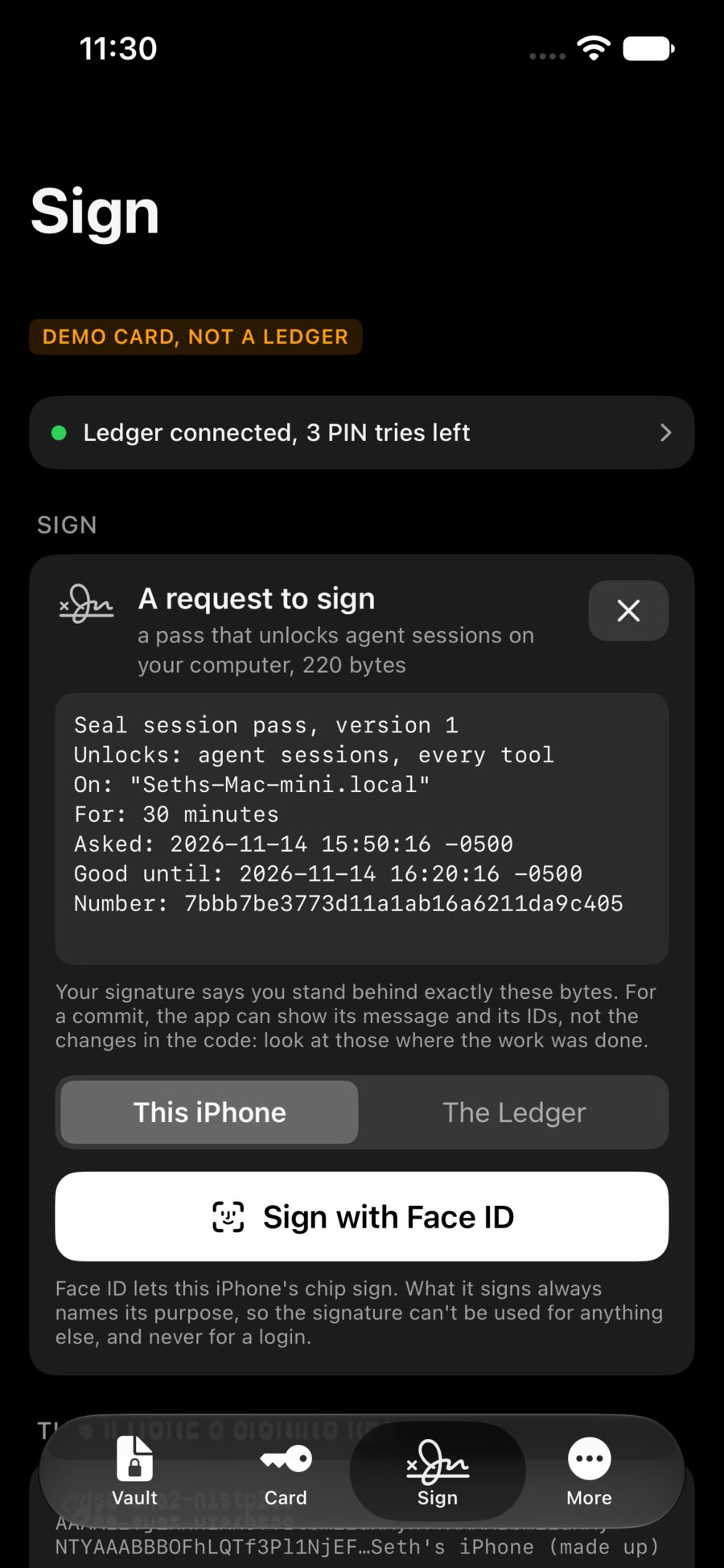
Without a pass, the message is held. Claude shows “A hook blocked your prompt” with the steps under it: “Locked. On your phone: Seal, Sign, Paste a signing request, Sign with Face ID, Copy the signature. Then paste it here and send.” The request is already on the Mac’s clipboard.
- 2
On the phone: Sign page,
Paste a signing request. Read it: it names your Mac and when the pass ends. - 3
Sign with Face ID, thenCopy the signature. - 4
Back on the Mac: click in Claude’s message box, press ⌘V (the Mac fetches the signature from the phone right then) and send. The lock opens, and the pass is good for 30 minutes, for every session on this Mac.
If ⌘V pastes the request instead of the signature, the phone’s copy didn’t reach the Mac: check Handoff (above), or paste it from the phone through Remote Control (below). The lock also looks for the signature on the Mac’s clipboard whenever a message comes in, so just sending your message again can work too.
For a longer pass: /seal:pass 120 (4 hours at most), while the lock is off or a pass is still good. While the lock is holding you, it waits for a pass like any message. To lock again before the time is up: /seal:drop. To see where things stand: /seal:status.
Turn the lock off
/seal:offTurning it off needs your phone too, so nothing on the Mac can do it alone. The request reads Turn the Seal lock off: sign it, Copy the signature, then paste it into a message and send. If the lock is holding you, sign a pass first: /seal:off waits for one like any message, so nobody who can’t sign can slip a different request in front of you.
Stuck?
Every held message ends with the way out, and it always works from the Mac’s own Terminal app (not from Claude Code):
rm ~/.seal-gate/lock-onThat turns the lock off. Whoever sits at your Mac can always do this: the lock keeps your agents from being driven from elsewhere, not your Mac from you.
Lost your phone?
If the lock is on and your phone’s key is gone (a lost phone, or Face ID set up again, which ends the key on purpose), turn the lock off the same way, rm ~/.seal-gate/lock-on in the Terminal app, then pair the new key with /seal:pair.
Away from the Mac
With Remote Control, the held message shows the request as one seal://sign?… line. Copy the whole message on the phone: Paste a signing request finds the line inside it. Sign, Copy the signature, and paste the signature into your next message in the Claude app. The lock reads it there, for a pass and for turning the lock off. This also works at the Mac when the shared clipboard doesn’t.
What it does and doesn’t do
- It holds messages and tools in every Claude Code session on this Mac that loads your settings. A scheduled job started with
--setting-sources ""stays out of it. A command typed with!at the Mac’s own keyboard is not held, but whoever sits at your keyboard can open Terminal anyway. From the phone, a line starting with!arrives as a plain message, and is held. - While a pass is good, the session works as usual, with Claude’s own permission questions.
- The lock’s files belong to your user account. A hardened version, with its rules in an admin-owned file, is planned.
- It can’t stop someone using a stolen login on Anthropic’s own servers. It stops them running anything on your computer.